
Field and lab tests
DCP tests
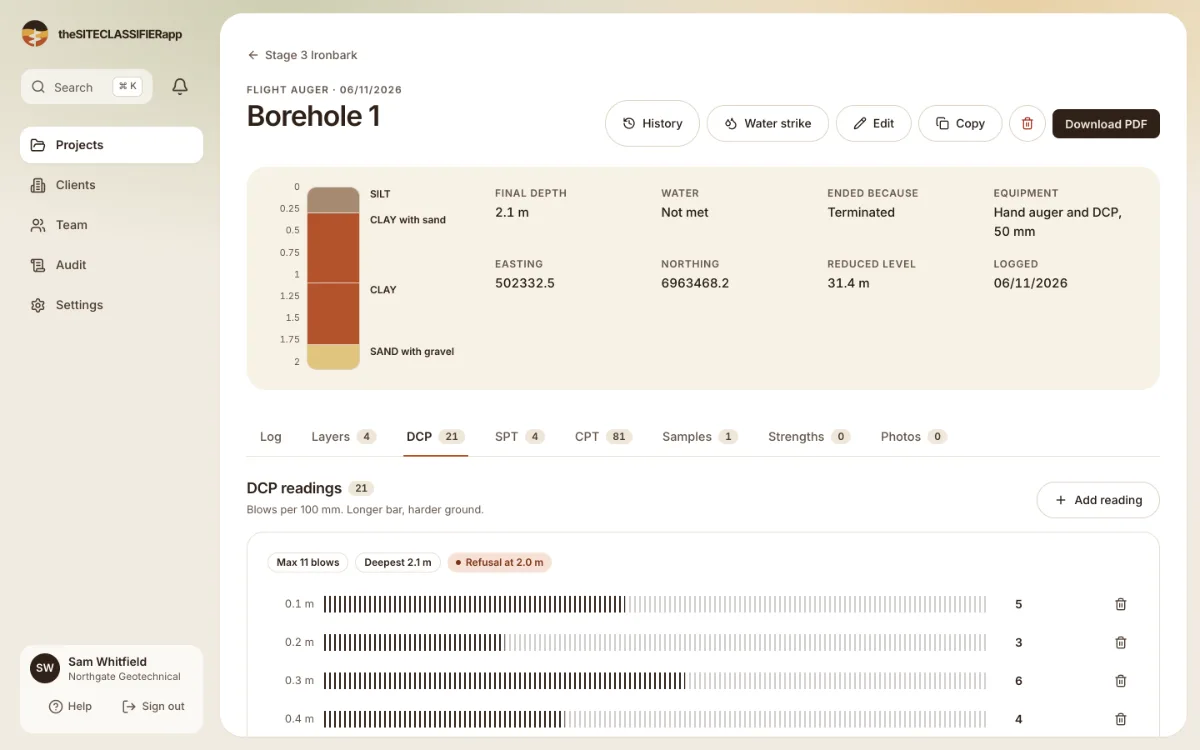
Record the blows for each 100 mm of a dynamic cone penetrometer test and see them as bars.
A DCP test gives a quick picture of how hard the ground is. You drive a cone into the ground and count the hammer blows for each 100 mm.
Add a reading
- Open the borehole and choose the DCP tab.
- Find the row under the list. It shows the next depth, in steps of 0.1 m, and a Blows box that is ready to type in.
- Type the blows and press Enter (or press Add). The reading is saved. The next depth is ready at once.
- Same blows as the last reading? Press Enter again. The last number stays in the box. Different? Type the new number over it.
- The cone stopped? Press Refusal before you save.
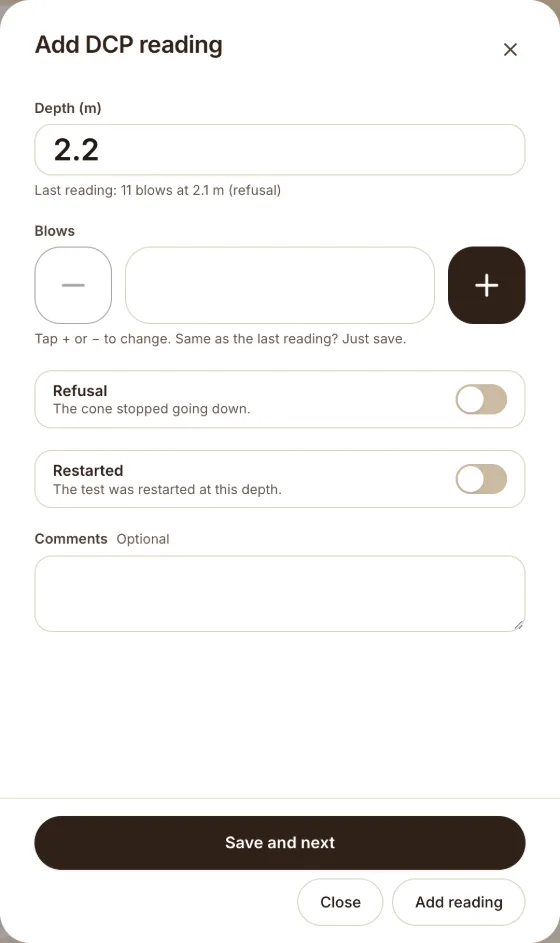
The quick row adds readings one after the other with no form. Use the form when you need more than the blows. Press Add reading at the top, or press a reading in the list to change it.
How to read the depth
Enter the depth at the bottom of the 100 mm step, in metres. The blows are the blows for the 100 mm above that depth. So the first reading is at 0.1 m, the next at 0.2 m, and so on. A hole to 3.0 m has readings from 0.1 to 3.0.
The chart
The tab draws a bar for each reading: "Blows per 100 mm. Longer bar, harder ground." The same readings print on the PDF log.
Other fields
- Refusal: the cone stopped going down. See Refusal.
- Restarted (in the form): you restarted the test at this depth. The log draws a dashed line and the word "restart".
- Comments (in the form): optional notes.
You can add readings only while your role and the project step allow field changes. See The project workflow.
Was this helpful?
Still stuck?
Tell us what happened. We will see which article you were reading.