
Field and lab tests
Lab tests and lab reports
Testers record lab results on samples. The app works out the calculated values and makes a lab report PDF.
On this page
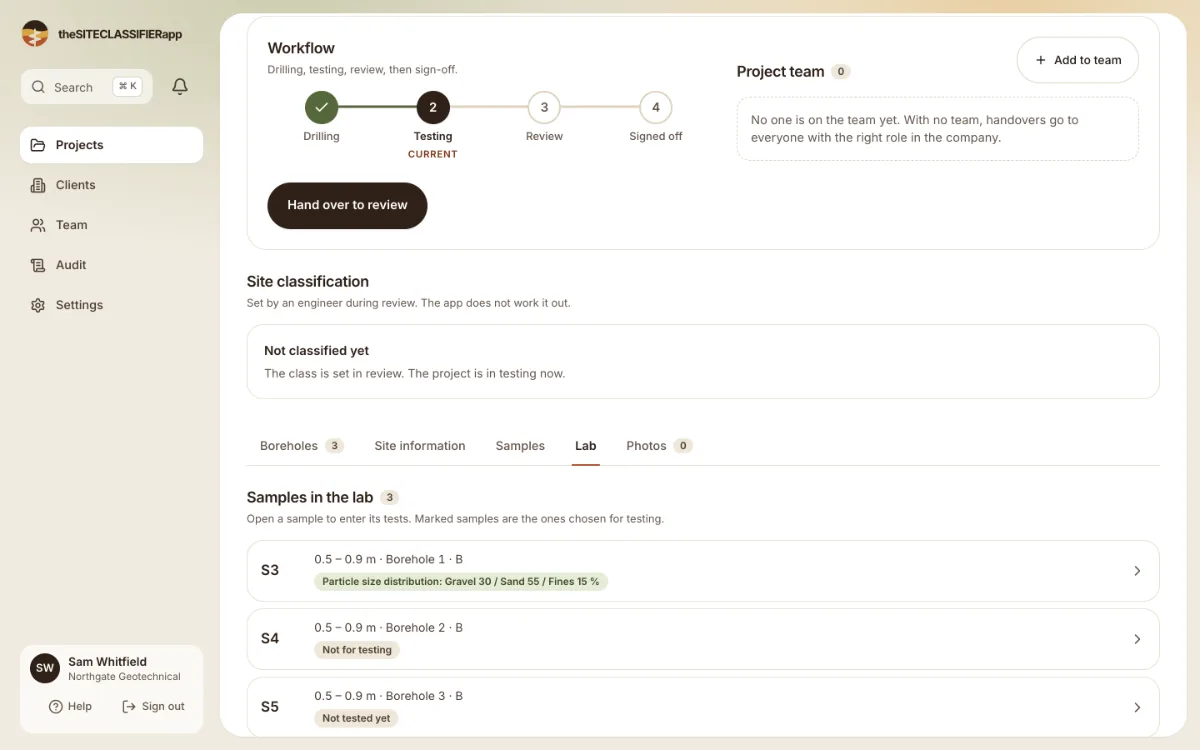
Lab results belong to samples. Mark samples to be tested on the Samples tab (see Samples). The project page shows a bar: "Lab: N of M samples tested".
Who enters lab results
Testers, engineers and admins, while the project is in Testing (engineers and admins also in Review). Drillers can only read them: "Lab results are read only for drillers. Testers and engineers enter them." After sign-off all lab results are locked.
Add a test
- Open the project and choose the Lab tab. It lists "Samples in the lab".
- Open a sample. Press Add a test.
- Choose the kind of test.
- Fill in Test details and the values. Calculated values are worked out for you.
- Save. Press Mark as complete when all values are in.
The test kinds
| Kind | You enter | The app works out |
|---|---|---|
| Moisture content | Wet mass and dry mass | Moisture content w (%) |
| Atterberg limits | Liquid limit, plastic limit, linear shrinkage lengths | Plasticity index and linear shrinkage |
| Shrink-swell | Shrinkage and swell strains | Shrink-swell index Iss |
| Particle size distribution | Sieve results | The curve, and gravel, sand and fines |
A plastic limit above the liquid limit is refused. A soil with no limits is marked Non-plastic (NP).
Draft, complete and reported
A Draft is not counted as tested and is not reported. When a sample has more than one test of one kind, mark one as Reported. The reported test goes on the report and on the summary.
Lab report PDFs
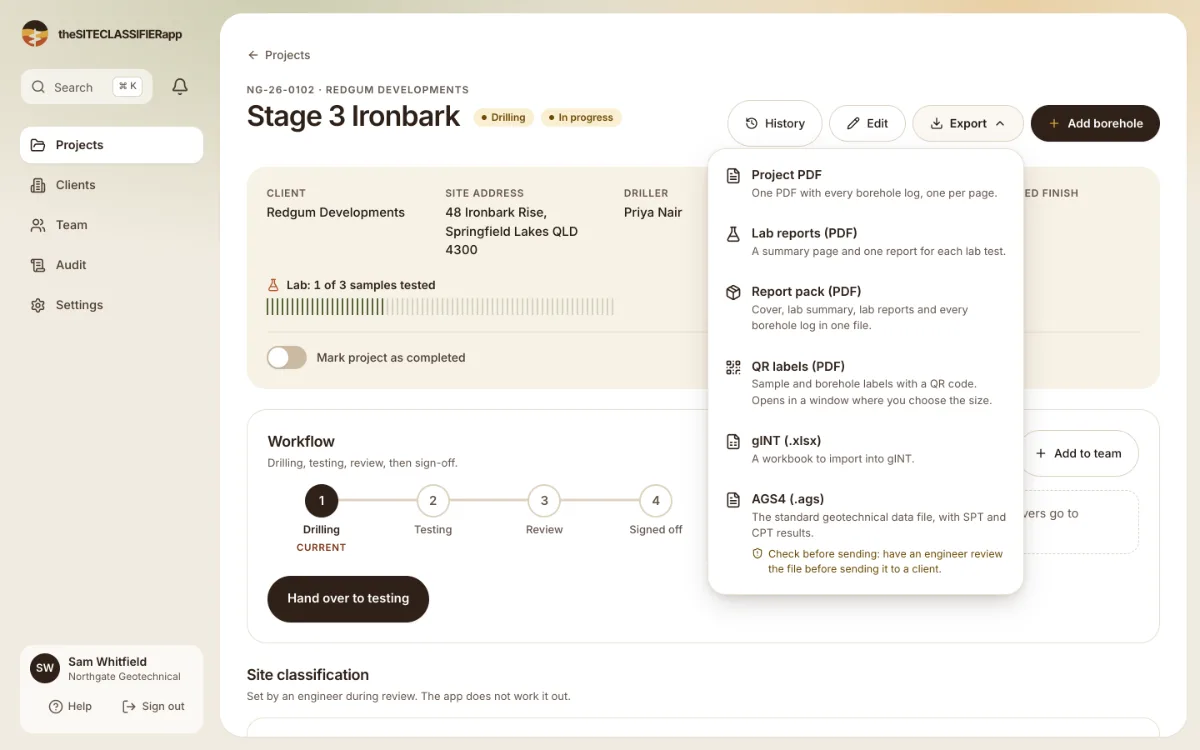
Open Export on the project:
- Lab reports (PDF): one report for the lab results.
- Report pack (PDF): the project log, the lab results and the summary together.
Testers can make the lab report. The report pack needs an engineer or admin.
Was this helpful?
Still stuck?
Tell us what happened. We will see which article you were reading.