
Projects and workflow
Edit and find projects
Change a project, or find one fast by name, job number, client or suburb.
Edit a project
Open the project and press Edit. The same form opens. Change what you need and press Save changes. Only an admin or engineer can edit the details, and only before sign-off.
Find a project
The Projects screen has a search box. It says "Search by name, job number, client or suburb". Type part of any of these.
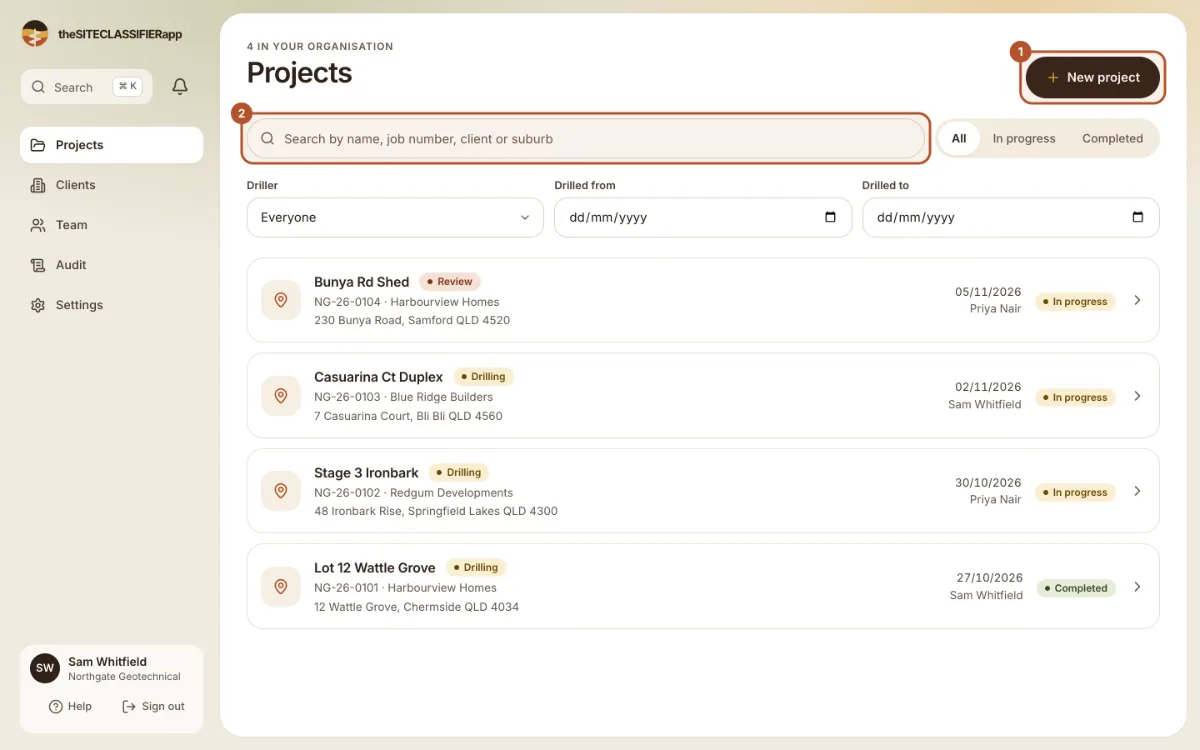
Use the filters to narrow the list:
- Status: All, In progress or Completed.
- Driller: the person who drills the job. The first choice is Everyone.
- Drilled from and Drilled to: a date range. Fill in both dates. If you only fill in the first, the screen says: "Pick an end date to apply the range."
Press Clear filters to start again.
Search everything
The Search button at the top of the side menu (or ⌘ K) looks across your projects, boreholes and more.
When the list is empty
- No projects yet means your company has no projects. Press New project.
- No projects match means your search or filters hide every project. Press Clear filters.
Was this helpful?
Still stuck?
Tell us what happened. We will see which article you were reading.