
Projects and workflow
Site photos
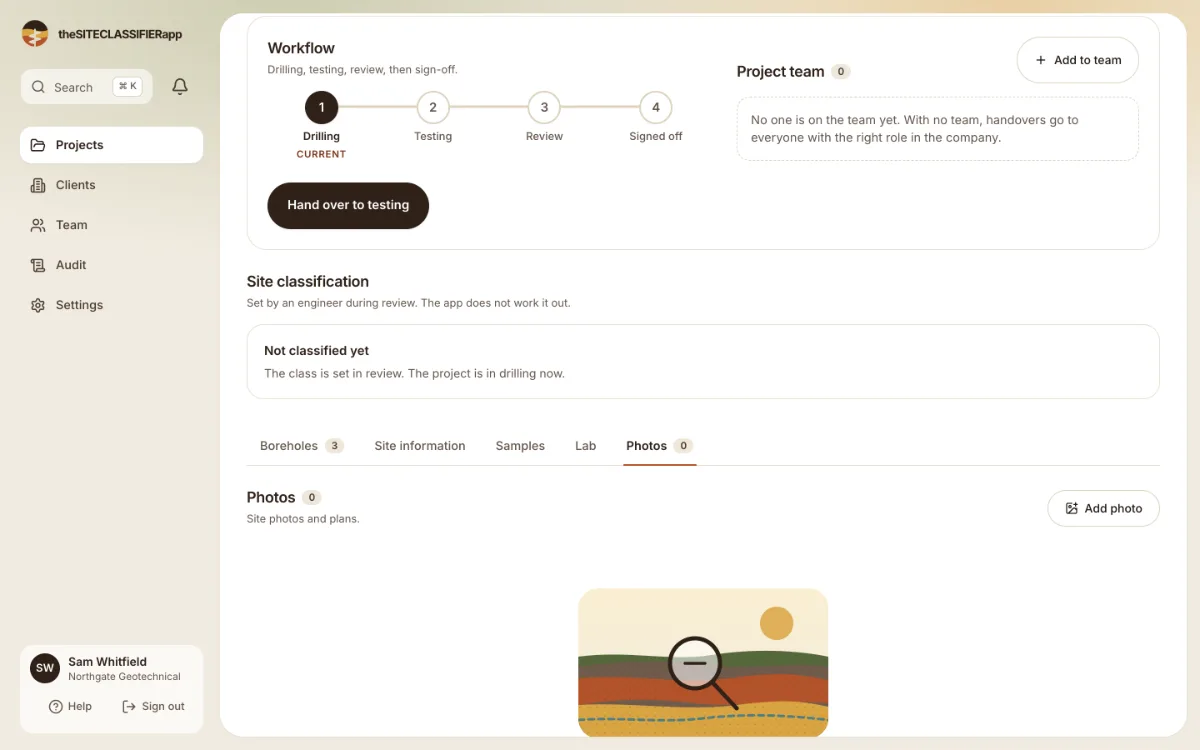
Photos belong to a borehole. See them all in a project, add more from the web or the phone, and spot photos with a wrong time or position.
A photo belongs to one borehole. Typical photos: the core boxes, the site and any hazard.
Look at the photos
- The Photos tab of a borehole shows that hole's photos.
- The Photos tab of the project shows the photos of every hole.
Press a photo to open it big. Use the arrow keys to move to the next one.
Add photos
Choose files, or drop them on the page. You can add many at once. Use JPEG or PNG pictures.
Photos can be added only while the project is in Drilling, by a driller, engineer or admin. After that the tab is read only and says: "Photos are read only now. The driller adds them from the phone." Testers cannot add photos.
The Android beta app takes photos in the field, even with no signal. It sends them when the signal comes back.
Check time and check position
Some photos show a small flag:
- Check time: the clock of the device that took the photo looked wrong. The time shown is when the photo reached the server.
- Check position: the position inside the photo file was far from the position the app recorded. The position from the app is shown.
- No position recorded: the photo has no position.
The flags are a hint. Look at the photo and decide.
Delete a photo
Open the photo and press Delete photo. The app shows "Photo deleted".
Was this helpful?
Still stuck?
Tell us what happened. We will see which article you were reading.